


Fixing crawl errors on a cleaning business website is one of the most important SEO tasks for improving local rankings and getting more cleaning leads from Google. If your suburb pages are not showing up in Google search results, or your service pages are not ranking despite months of work, crawl errors are often the reason. Google cannot rank a page it cannot read. And on most cleaning business websites, there are pages Google is either blocked from accessing or has decided are not worth indexing quietly, without any notification to the website owner.
Google Search Console (GSC) is the free tool that shows you exactly where these problems are. This guide explains how to fix crawl errors on a cleaning business website, how to identify indexing problems that matter, and how to fix the errors that are stopping your suburb and service pages from generating leads. Every step is written for a cleaning business owner managing their own WordPress website, with no developer required.
Table of Contents
1. Why Should a Cleaning Business Care About Crawl Errors?
| KEY ANSWER: A crawl error means Google cannot access or read a page on your cleaning website. If Google cannot read a page, that page cannot rank in search results. A page blocked by a crawl error generates zero organic leads permanently until the error is fixed. |
1.1. What crawling actually means
Google uses an automated programme called Googlebot to visit websites, read their content, and decide whether to include them in search results. This process is called crawling. When Googlebot visits your cleaning website, it reads your service pages, your suburb pages, and your blog posts and decides which ones are good enough to show to people searching for cleaning services.
If something prevents Googlebot from reaching a page, a broken link, a server error, or an incorrect setting in your WordPress SEO plugin, that page is effectively invisible to Google. It will not rank. It will not appear in search results. It will generate zero enquiries, regardless of how well-written or well-optimized it is.
1.2. The direct connection between crawl errors and missing suburb page rankings
Suburb pages are the most important ranking assets on a cleaning business website. A page targeting ‘bond cleaning Newtown’ or ‘house cleaning Buckhead’ exists for one reason: to appear when a client in that suburb searches for a cleaner and to generate an enquiry. If that page has a crawl error, it will not appear. The client who would have booked through that page will call a competitor instead.
For a cleaning business with twenty suburb pages, even five pages blocked by crawl errors represent a significant loss of organic lead flow. Each blocked page is a suburb where you are invisible on Google, even though you built it.
1.3. How crawl errors compound over time if left unfixed
Crawl errors do not stay contained to the pages where they originate. When Googlebot repeatedly encounters errors on a website, server timeouts, redirect loops, or pages that claim to exist but display no content, it reduces how frequently it crawls that site overall. This means new suburb pages take longer to get indexed, updated service pages take longer to reflect their improvements in rankings, and the overall organic lead flow from the website grows more slowly than it should.
Fixing crawl errors is not a one-time cleanup task. It is the maintenance work that keeps your cleaning website generating leads consistently as you build it out.
2. How Does a Cleaning Business Set Up Google Search Console?
| KEY ANSWER Go to search.google.com/search-console, add your website as a property, verify ownership using the HTML tag method (paste one line of code into your website header), and submit your sitemap. The whole process takes under 20 minutes and requires no technical background. |
Before you can find and fix crawl errors, you need to have Google Search Console connected to your cleaning website. If you have never done this, or are not sure whether it has been done correctly, start here.
2.1. Which property type to choose
When you add your website to GSC, it asks you to choose between two property types: Domain and URL prefix. Choose Domain if possible; it captures data from all versions of your website (http, https, www, and non-www) in one place. You will need to verify this through your domain registrar, which requires adding a DNS record. If that sounds complicated, choose URL Prefix instead and enter your full website address starting with https://. This is easier to verify and covers the version of your site that clients actually visit.
2.2. The easiest verification method for a WordPress cleaning website
The simplest verification method for a WordPress website is the Google Analytics connection. If you already have Google Analytics 4 set up on your cleaning website, GSC can verify your ownership automatically, no code required. In GSC, choose URL Prefix, enter your website address, and select ‘Google Analytics’ from the verification options. Click verify. If your GA4 is correctly installed, verification happens instantly.
If you do not have Google Analytics installed, use the HTML tag method instead. GSC will give you a line of code that looks like this: <meta name=’google-site-verification’ content=’…’ />. In WordPress, go to your SEO plugin (Yoast SEO or RankMath), find the Webmaster Tools or Search Console section, paste the verification code there, save, and click verify in GSC. The plugin inserts the code into your website header automatically.
2.3. How to find your sitemap URL in Yoast SEO and RankMath
Your sitemap is the file that tells Google which pages exist on your cleaning website. Once GSC is verified, submit your sitemap so Google knows where to find your suburb pages, service pages, and blog posts.
In Yoast SEO, your sitemap URL is yourwebsite.com/sitemap_index.xml. Go to GSC, click Sitemaps in the left menu, paste this URL, and click Submit. In RankMath, your sitemap URL is yourwebsite.com/sitemap.xml. Same process, paste and submit.
2.4. What to connect GSC to after setup
After verifying your property, connect GSC to Google Analytics 4 through the GA4 property settings under Admin > Search Console Links. This allows you to see which GSC keyword data corresponds to which pages are generating traffic in Analytics useful for diagnosing why a specific page is being crawled but not converting enquiries.
After the connection, check back in GSC after 48 hours. Data takes up to two days to populate. Your first check should be the Page Indexing report, which shows how many of your pages Google has successfully indexed versus how many it has excluded or flagged with errors.
3. Where Do You Find Crawl Errors in Google Search Console in 2026?
| KEY ANSWER In the current GSC interface, crawl errors live in two places: the Page Indexing report (under Indexing in the left menu) shows why pages are not indexed, and the Crawl Stats report (under Settings) shows how often Googlebot visits your site and whether it is encountering server problems. |
Many guides still refer to the ‘Index Coverage Report’ or the ‘Coverage Report’; these names come from older versions of GSC. The current interface uses different labels. Here is exactly where to find what you need.
3.1. The Page Indexing report
In the left-hand menu of GSC, click Indexing, then click Pages. This is the Page Indexing report. It shows a chart at the top with two lines: indexed pages (good) and not indexed pages (a number worth investigating). Below the chart is a table titled ‘Why pages aren’t indexed.’ This table lists every reason Google has excluded pages from its index, with a count of how many pages fall into each category.
For a cleaning website, the most important rows to check in this table are: ‘Crawled currently not indexed’ (Google read the page but chose not to include it common for thin suburb pages), ‘Discovered currently not indexed’ (Google knows the page exists but has not visited it yet common for newly published suburb pages with no internal links), and ‘Not found (404)’ (the page no longer exists common after deleting or renaming suburb pages).
3.2. The Crawl Stats report
In the left-hand menu, click Settings (the gear icon at the bottom), then click Crawl Stats. This report shows how often Googlebot has visited your site in the past 90 days and what responses it received. The most important section is the Response Codes table, which shows the percentage of Googlebot’s visits that returned successful responses (200 OK, what you want) versus errors (5xx server errors, 404 not found, redirect responses).
A healthy cleaning website should show the vast majority of responses as 200 OK. If you see a significant percentage of 5xx server errors, your hosting is struggling to serve pages to Googlebot, a problem that directly reduces how frequently Google crawls your site and how quickly new suburb pages get indexed.
3.3. The URL Inspection Tool
In the search bar at the top of GSC (which says ‘Inspect any URL in [your website]’), paste the exact URL of any page on your cleaning website and press Enter. The URL Inspection Tool shows you whether that specific page is indexed, when it was last crawled, and whether Googlebot encountered any issues. For a suburb page you are concerned about, for example, your ‘bond cleaning Chatswood’ page, this tool tells you exactly what Google knows about that page right now.
If the page shows ‘URL is not on Google’ with a reason, that reason is your diagnosis. Fix the issue described, then click ‘Request Indexing’ to ask Google to recrawl the page immediately.
3.4. How to read the ‘Why pages aren’t indexed’ table without panicking
The first time a cleaning business owner opens this table, they often see hundreds of excluded pages and assume something is catastrophically wrong. In most cases, the majority of excluded pages are WordPress-generated archive pages, tag pages, category pages, author pages, and date archives that should not be indexed and are correctly excluded by your SEO plugin. A large number of excluded pages is only a problem when those pages include your suburb pages or service pages.
Scroll through the list of reasons and look specifically for reasons that might include your commercial pages. Click any row to see a sample of the URLs affected. This instantly tells you whether the issue involves pages that matter to your lead generation or pages that are safely ignorable.
4. Which Crawl Errors Should a Cleaning Business Fix First and Which Can Be Ignored?
| KEY ANSWER: Fix immediately: server errors (5xx), pages blocked by robots.txt that should rank, and redirect errors on suburb and service pages. Ignore or accept: excluded tag pages, author archive pages, and paginated blog pages; these should not be indexed on a cleaning website anyway. |
Not every GSC error requires action. Understanding which errors affect your commercial pages and which are normal, expected, and harmless is the skill that separates a cleaning business owner who wastes hours on irrelevant fixes from one who spends 30 minutes on the issues that actually affect lead generation.
Fix immediately
| 🔴 FIX NOW: Server errors (5xx) on any page. This means Googlebot cannot reach your site at all during its crawl window, which reduces overall crawl frequency for your entire website. |
| 🔴 FIX NOW: Suburb pages or service pages showing ‘Crawled currently not indexed’; these are your revenue-generating pages, and they are not appearing in Google search results. |
| 🔴 FIX NOW: Redirect errors on service pages or suburb pages. A redirect loop or broken redirect chain on a commercial page means that page is permanently inaccessible to both Google and prospective clients. |
| 🔴 FIX NOW: Suburb pages or service pages blocked by robots.txt if your robots.txt file is preventing Googlebot from accessing pages you want to rank, those pages will never appear in search results, regardless of their quality. |
Monitor but do not panic
| 🟡 MONITOR: ‘Discovered currently not indexed’ for newly published suburb pages. This status is normal for new pages. Give Google two to four weeks to crawl them. If they remain in this status after a month, strengthen internal linking to those pages. |
| 🟡 MONITOR: ‘Crawled currently not indexed’ for blog posts. This often indicates thin content that does not meet Google’s quality threshold. It requires content improvement, not a technical fix. |
Safely ignore
| ✅ IGNORE: Tag pages, category pages, author archive pages, date archive pages, and search result pages excluded from indexing. These WordPress-generated pages should not be indexed on a cleaning website. Their exclusion is correct and expected. |
| ✅ IGNORE: Paginated blog pages (/page/2, /page/3) excluded from indexing. These are not commercial pages, and their exclusion does not affect lead generation. |
| ✅ IGNORE: Admin pages, login pages, and checkout pages (if you use WooCommerce for booking). These should never be indexed. |
4.1. The one question to ask before fixing any GSC error
Before spending time on any error in your GSC report, ask: ‘Do I want Google to rank this page and send clients to it?’ If the answer is yes, the error needs fixing. If the answer is no, the error may be correct and expected. This single question eliminates 80% of unnecessary work for most cleaning website owners.
5. Why Are My Suburb Pages Not Showing Up in Google and How Do I Fix Them?
| KEY ANSWER The three most common reasons suburb pages are excluded from Google’s index: thin content (not enough unique text per page), duplicate content (pages too similar to each other), and canonical confusion (WordPress generating conflicting URL versions of the same page). Each has a specific fix requiring no coding. |
‘Crawled currently not indexed’ is the most common GSC status for suburb pages on cleaning websites. It means Google visited the page, read it, and decided it was not good enough to include in its index. This is not a technical error in the traditional sense it is a content quality signal. And it has a specific set of causes on cleaning websites.
5.1. Thin content: how much unique text does a suburb page need
The most common cause of ‘crawled not indexed’ for suburb pages is thin content pages that contain so little unique text that Google cannot determine what they are about or why a user would benefit from visiting them. A suburb page that consists of two paragraphs with the suburb name inserted into a template, a services list, and a contact form is almost always flagged as thin.
A suburb page that will be indexed needs at least 400 to 600 words of genuinely unique content about that suburb. This means: a suburb-specific headline targeting the exact keyword, two to three paragraphs describing what you know about cleaning in that area (property types, rental market, local considerations), a FAQ section with questions and answers specific to that suburb’s context, and a clear call to action with a booking link. The content must be different from every other suburb page on your site in more than just the suburb name.
5.2. Duplicate content across the suburb pages
If you have built suburb pages by copying a template and changing the suburb name, Google sees those pages as duplicate content. When multiple pages are nearly identical, Google picks one to index and excludes the rest. For a cleaning website with fifteen similar suburb pages, Google might index five and exclude ten, leaving you with no rankings in those ten suburbs.
The fix is differentiation. For each suburb page, add at least one element that cannot appear on any other page: a specific mention of the suburb’s most common property type (apartment buildings in inner-city suburbs, houses in outer suburbs), a reference to local real estate agencies or rental platforms active in that area, or a genuine client result specific to that suburb. Even two or three unique sentences per page if they contain genuinely suburb-specific information, significantly reduce the duplicate content signal.
5.3. Canonical confusion on WordPress cleaning websites
WordPress sometimes generates multiple URLs that point to the same page, for example, yourwebsite.com/bond-cleaning-newtown/ and yourwebsite.com/?page_id=142 might both display your Newtown suburb page. When Google sees two URLs with the same content, it picks one as the canonical (the primary version) and excludes the other. If it picks the wrong one, your suburb page disappears from search results.
The fix: in Yoast SEO, go to SEO > Search Appearance > Content Types, ensure your suburb pages are set to index and have self-referential canonical tags enabled. In RankMath, go to Titles & Meta > Posts (or Pages, depending on how your suburb pages are structured) and enable canonical URLs. These settings tell Google which URL is the correct version of each suburb page, eliminating the confusion that causes canonical exclusions.
5.4. Internal linking gaps
A page with no internal linking from other pages on your cleaning website takes significantly longer to be indexed and may never be indexed if Google’s crawler never discovers a path to it. Every suburb page must receive at least one internal link from an existing, indexed page on your site: your main service page, your homepage, or a relevant blog post. This gives Googlebot a path to the suburb page and signals that your site considers it important.
After adding internal links to a page that has been excluded, use the URL Inspection Tool to request indexing. Google will typically recrawl the page within a few days and reassess whether to include it in the index.
6. What Are the Most Common Crawl Errors on Cleaning Websites and How Do You Fix Each One?
| KEY ANSWER The five crawl errors most commonly found on cleaning business websites are: 404 not found, server error (5xx), redirect error, soft 404, and crawled but not indexed. Each appears in the Page Indexing report, and each has a specific fix that does not require developer help. |
Here is each error type, what causes it on a cleaning website specifically, and the exact steps to fix it.
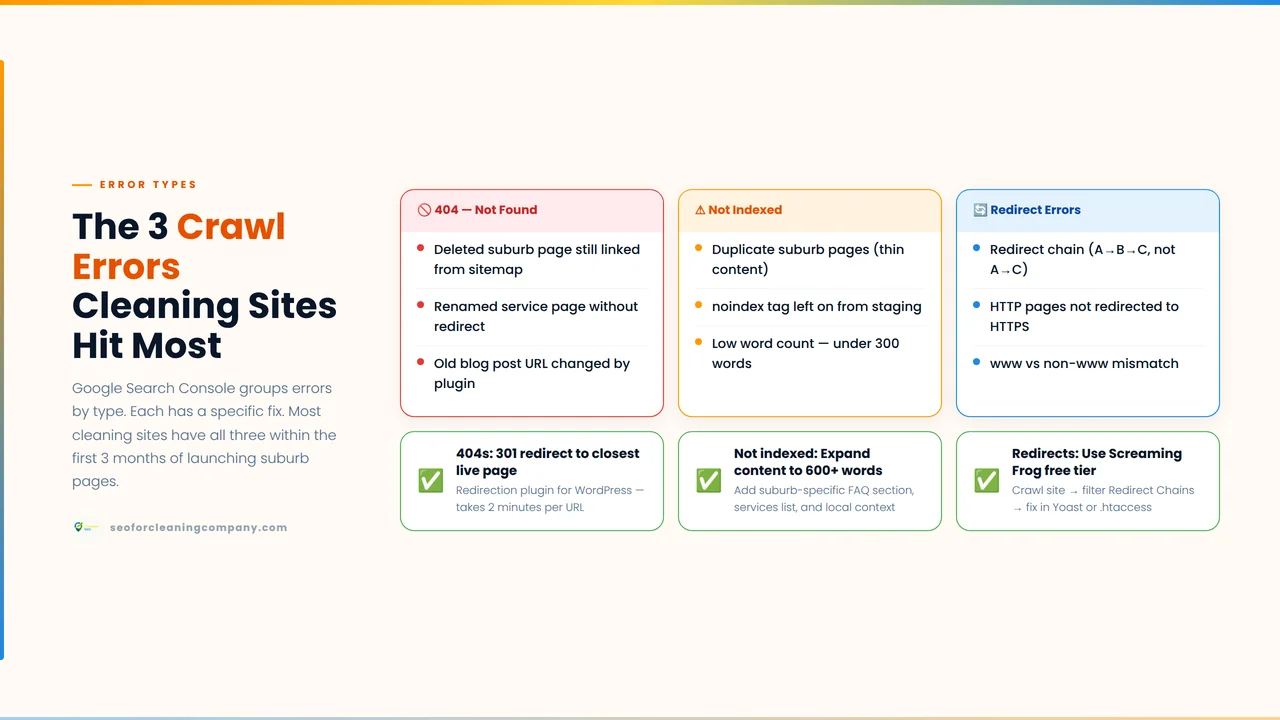
| Error 1: 404 Not Found. Cause: A suburb page or service page URL no longer exists. Common on cleaning websites after renaming a page (‘carpet-cleaning-sydney’ changed to ‘carpet-cleaning-sydney-professional’), deleting a suburb page that was not performing, or restructuring the site’s URL format. Fix: In WordPress, install the Redirection plugin (free). Create a 301 redirect from the old URL to the most relevant current page. For a deleted suburb page with no replacement, redirect to your main service page for that vertical. Remove the broken URL from your sitemap and update any internal links pointing to the old URL. |
| Error 2: Server Error (5xx)Cause: Your hosting server failed to respond when Googlebot visited your cleaning website. Common causes: shared hosting plans that cannot handle simultaneous traffic and crawl requests, PHP memory limits reached by WordPress plugins, or a hosting outage that coincided with Googlebot’s visit. Fix: Check your hosting dashboard for uptime logs and error reports. If 5xx errors are frequent (appearing in multiple GSC crawl windows over multiple days), contact your hosting provider and request an investigation. For Hostinger, SiteGround, or similar shared hosts: consider upgrading your plan or enabling server-level caching. After the server issue is resolved, use the URL Inspection Tool to request a recrawl of affected pages. |
| Error 3: Redirect Error Cause: A redirect chain or redirect loop on a cleaning website page. Common cause: an old redirect from http to https was never cleaned up, creating a chain: http → https → www → non-www → https://www. Each step adds a delay until Googlebot gives up. Fix: Use a professional SEO tool like Redirect Checker (httpstatus.io) to trace the redirect path for any URL showing a redirect error. Identify the chain and update the original URL to redirect directly to the final destination in a single step. In WordPress, update the redirect in your Redirection plugin and check that your main site URL in Settings > General matches your intended canonical version. |
| Error 4: Soft 404. Cause: A suburb page on your cleaning website returns a successful page load (200 OK) but contains so little content that Google treats it as if it does not exist. Common on cleaning websites with stub pages created as placeholders with only a heading and a contact form. Fix: Add substantive content to the page: minimum 400 words of unique, suburb-specific text. Alternatively, if the suburb page is a placeholder you are not ready to develop, add a noindex tag in Yoast or RankMath temporarily, which tells Google not to try to index it, preventing soft 404 signals from accumulating. Remove the noindex tag when the page has full content. |
| Error 5: Crawled — Currently Not Indexed. Cause: Google read your suburb page or blog post and decided not to include it in its index. This is a content quality signal, not a technical error. Common causes on cleaning websites: thin suburb pages, duplicate suburb page templates, or blog posts that cover topics already addressed better by competing pages. Fix: Follow the suburb page content improvements described in Section 5: add unique suburb-specific content (minimum 400–600 words), differentiate from other suburb pages, add FAQ schema markup, and strengthen internal links to the page. For blog posts: expand thin posts with original research, practical examples, or cleaning-specific detail. After improving content, use the URL Inspection Tool to request indexing and monitor the Page Indexing report over the following two to four weeks. |
7. What WordPress and Elementor Settings Cause Crawl Errors on Cleaning Websites?
| KEY ANSWER The three WordPress settings that most commonly block cleaning website pages from Google: a noindex checkbox accidentally enabled in Yoast SEO or RankMath, a robots.txt Disallow rule added by a plugin or hosting provider, and Elementor CSS files that Googlebot cannot access due to file permission settings. |
| KEY ANSWER Your sitemap should include only the pages you want Google to index: service pages, suburb pages, blog posts, and core site pages. Exclude tag pages, author pages, and search result pages. Your robots.txt file should disallow admin directories and allow everything else, including Googlebot access to CSS and JavaScript files. |
8.1. What to include in your cleaning website sitemap
Your sitemap is the list you hand to Google and say, ‘these are the pages I want you to find and index.’ It should include every page that generates leads or builds topical authority: your homepage, your About page, all service pages (carpet cleaning, bond cleaning, commercial cleaning, etc.), all suburb pages, all published blog posts, and your case study pages.
It should not include: tag pages, category archive pages, author pages, paginated pages (/page/2, etc.), search result pages, admin pages, thank-you pages (that appear after a form submission), or any page with a noindex tag. Including these pages in your sitemap sends Google mixed signals; you are saying ‘I want you to index this page’ while simultaneously telling Google not to index it.
8.2. How to generate and submit your sitemap in 2 minutes
In Yoast SEO, the sitemap is automatically generated. Go to SEO > General > Features and ensure XML Sitemaps is toggled on. Your sitemap lives at yourwebsite.com/sitemap_index.xml. In RankMath: go to RankMath > Sitemap Settings and enable the sitemap. Your sitemap lives at yourwebsite.com/sitemap.xml. To submit: in GSC, click Sitemaps in the left menu, enter your sitemap URL, and click Submit. GSC will show you when the sitemap was last read and how many URLs were discovered.
8.3. What a healthy cleaning website robots.txt looks like
Your robots.txt file lives at yourwebsite.com/robots.txt. You can view it by typing that URL directly in your browser. A healthy robots.txt for a WordPress cleaning website looks like this:
User-agent: *
Disallow: /wp-admin/
Allow: /wp-admin/admin-ajax.php
Sitemap: https://yourwebsite.com/sitemap_index.xml
This configuration blocks Googlebot from your WordPress admin area (which should never be indexed) while allowing access to everything else, including your CSS and JavaScript files, your suburb pages, and your blog posts.
8.4. The one robots.txt mistake that blocks your entire WordPress theme
| ⚠️ CRITICAL MISTAKE: Disallow: /wp-content/ This rule, sometimes added by security plugins or overzealous developers, blocks Googlebot from accessing your theme files, Elementor CSS, and plugin assets. Without these files, Google cannot render your pages correctly. If you see this rule in your robots.txt, remove it immediately. |
After any change to your robots.txt, use the URL Inspection Tool to check that your important pages are still accessible. Paste a suburb page URL and check the ‘Indexing allowed’ status. If it says ‘Indexing not allowed’ after your robots.txt edit, a Disallow rule is blocking it.
9. What is a Crawl Budget, and Does It Affect a Cleaning Website With Many Suburb Pages?
| KEY ANSWER: Crawl budget is the number of pages Google crawls on your site per day. For a cleaning website with 50 or more subpages, the crawl budget determines how quickly new pages get indexed. Removing thin pages, fixing redirect chains, and improving server speed all increase how many pages Google crawls daily. |
Crawl budget is not a concern for small cleaning websites with ten to twenty pages. Once you start building a large suburb page portfolio, fifty, a hundred, or more pages, crawl budget becomes a real factor in how quickly new pages get indexed and how consistently Google revisits existing pages to pick up updates.
9.1. What reduces crawl budget on a cleaning website
Four things reduce how many pages Google crawls on your site per day, and all four are common on cleaning websites:
- Thin and duplicate suburb pages: Google crawls them, finds little value, and reduces how often it returns. Each thin page wastes a crawl slot that could have been used on a valuable service page.
- Redirect chains: each redirect hop takes server time and counts as a crawl event. A chain of three or four redirects uses crawl budget that could be used to discover new subpages instead.
- Slow server response times: if your cleaning website takes more than 500 milliseconds to respond to Googlebot’s requests, Google crawls fewer pages per day. Shared hosting at its resource limits is a common cause.
- Large numbers of low-value URLs: WordPress-generated parameter URLs, session IDs, or search result pages that are not properly excluded from crawling consume budget on pages that will never rank.
9.2. What increases crawl budget
- Strong internal linking: a suburb page linked from your homepage, your main service page, and two blog posts will be discovered and recrawled much more frequently than a suburb page with no internal links.
- Fast server response: Upgrading from basic shared hosting to a plan with dedicated resources or enabling server-side caching significantly increases how many pages Googlebot can crawl in a given session.
- Clean sitemaps: a sitemap that contains only indexable, live, 200-status pages tells Google exactly which pages matter, helping it allocate crawl budget efficiently.
- Fixing and removing thin pages: removing stub page stubs and improving thin pages to full content quality improves the overall site quality signal, which encourages more frequent crawling.
9.3. The fastest way to get a new suburb page indexed
When you publish a new suburb page, take these four steps in order to get it indexed as quickly as possible. First, add at least two internal links to it from existing indexed pages, your main service page and one related blog post. Second, add it to your sitemap (Yoast and RankMath do this automatically for new pages). Third, open the URL Inspection Tool in GSC, paste the new page’s URL, and click ‘Request Indexing.’ This puts the page in Google’s priority crawl queue. Fourth, wait three to five days and check the URL Inspection Tool again to confirm the page has been crawled and whether it has been indexed.
10. What Should a Cleaning Business Check in Google Search Console Every Month?
| KEY ANSWER Once per month: check the Page Indexing report for new errors on suburb and service pages, review the Crawl Stats report for server availability issues, inspect any newly published suburb pages using the URL Inspection Tool, and verify that your sitemap is being read correctly with no submission errors. |
GSC is not a tool you configure once and forget. Crawl errors appear when pages are deleted, when WordPress updates change plugin behaviour, when hosting configurations change, and when new suburb pages are published without proper setup. A 30-minute monthly review catches these issues before they cause sustained ranking damage.
Check 1: Page Indexing report new errors on service and suburb pages
Open the Page Indexing report (Indexing > Pages). Look at the ‘Not indexed’ count. Has it increased since last month? Click each error category and review the sample URLs. Are any of your service pages or suburb pages in the list? If yes, that is your priority fix for this month. Anything that involves a commercial page needs addressing before the next review.
Check 2: Crawl Stats server availability trends
Open Settings > Crawl Stats. Look at the Response Codes table. What percentage of Googlebot’s visits returned 5xx server errors? If this percentage has increased compared to last month, contact your hosting provider. A rising 5xx rate means your server is increasingly struggling under the combined load of real visitor traffic and Googlebot crawl requests, and your new suburb pages will take longer to index as a result.
Check 3: URL Inspection for newly published suburb pages
For every suburb page published in the past 30 days that you have not yet confirmed as indexed, open the URL Inspection Tool and check its current status. If a page published three or more weeks ago still shows ‘URL is not on Google,’ it has a problem: either thin content, no internal links, a noindex tag, or a robots.txt block. Diagnose using the steps in Section 5 and request indexing after fixing.
Check 4: Sitemap status
Click Sitemaps in the left menu. Your submitted sitemap should show a green ‘Success’ status and a URL count that matches your expected number of pages. If the status shows a warning or error, click through to see what is wrong. A common issue is the sitemap URL returning a 404 because a plugin update changed the sitemap path. Resubmit the correct URL if needed.
10.1. When to call in a specialist
Most crawl errors on cleaning websites are fixable by the website owner using the steps in this guide. The situations that warrant calling an SEO specialist: persistent 5xx errors that your hosting provider cannot explain, subpages that remain excluded despite correct content, canonical tag conflicts that keep reappearing after being fixed, or a sudden site-wide drop in indexed pages with no obvious cause in the GSC reports. These typically indicate a deeper technical issue, a misconfigured server, a plugin conflict, or a structural problem in the site’s URL architecture that requires hands-on investigation.
Conclusion
Crawl errors are the silent killers of cleaning website SEO. They do not announce themselves. They do not cause your website to go offline. They simply prevent suburb pages and service pages from appearing in Google search results and, therefore, prevent enquiries from arriving while everything else looks normal.
Google Search Console shows you exactly where these problems are. The Page Indexing report, the Crawl Stats report, and the URL Inspection Tool together give you everything you need to identify, prioritize, and fix the errors that are costing your cleaning business organic leads. Check it monthly. Fix the errors that affect your commercial pages first. Leave the excluded archive pages alone. And request indexing after every fix so Google picks up your corrections quickly.
| Not sure which crawl errors are hurting your cleaning website’s rankings? Get a free SEO audit at seoforcleaningcompany.com. We’ll review your GSC report, subpage indexing, and technical setup at no cost. |
Frequently Asked Questions:
How do I know if my suburb pages are being indexed by Google?
Open Google Search Console and go to the URL Inspection Tool (the search bar at the top of the interface). Paste the exact URL of your suburb page and press Enter. The result shows whether that specific page is indexed, when it was last crawled, and whether Google encountered any issues. If it says ‘URL is on Google,’ the page is indexed. If it says ‘URL is not on Google,’ the reason given tells you what to fix.
How long does it take for a new suburb page to be indexed after fixing a crawl error?
After fixing a crawl error and using the URL Inspection Tool to request indexing, most cleaning website pages are crawled within three to seven days. Whether Google then chooses to index the page depends on its content quality a thin page will be crawled and excluded; a well-built suburb page with unique content and internal links will typically be indexed within one to two weeks of the fix.
My GSC shows hundreds of excluded pages. Should I be worried?
Not necessarily. Click through each exclusion category and look at the sample URLs. If the excluded pages are WordPress tag pages, author archive pages, category pages, and paginated blog pages, those exclusions are correct and expected. Only investigate further if the excluded pages include your suburb pages, service pages, or blog posts. These are the pages that should be indexed and are not.
Can a crawl error cause my cleaning website to lose rankings it already had?
Yes. If a server error (5xx) persists over multiple Googlebot crawl windows, Google may temporarily remove affected pages from its index while it waits for the server to recover. A redirect error on a service page that previously ranked can similarly cause that page to disappear from search results until the redirect is corrected. This is why prompt action on 5xx errors and redirect errors is the top priority in the fix-vs-ignore framework
Do I need to fix crawl errors on pages I don’t care about ranking?
No. Crawl errors on pages you do not want indexed, tag pages, admin pages, old placeholder pages — do not require fixing. The only exception is server errors (5xx), which affect your entire website’s crawl frequency regardless of which specific pages they occur on. A 5xx error on an unimportant page still reduces how often Google visits your important suburb pages, so server errors always merit attention, regardless of which page triggered them.
